Images
Images requires an understanding of Sections and Paragraphs.
To create a floating image on top of text:
const image = new ImageRun({
    type: "gif",
    data: fs.readFileSync("./demo/images/pizza.gif"),
    transformation: {
        width: 200,
        height: 200,
    },
    floating: {
        horizontalPosition: {
            offset: 1014400,
        },
        verticalPosition: {
            offset: 1014400,
        },
    },
});
By default with no arguments, its an inline image:
const image = new ImageRun({
    type: "gif",
    data: fs.readFileSync("./demo/images/pizza.gif"),
    transformation: {
        width: 100,
        height: 100,
    },
});
Add it into the document by adding the image into a paragraph:
const doc = new Document({
    sections: [{
        children: [
            new Paragraph({
                children: [image],
            }),
        ],
    }];
});
Intro
Adding images can be easily done by creating an instance of ImageRun. This can be added in a Paragraph or Hyperlink:
const doc = new Document({
    sections: [{
        children: [
            new Paragraph({
                children: [
                    new ImageRun({
                        type: [IMAGE_TYPE],
                        data: [IMAGE_DATA],
                        transformation: {
                            width: [IMAGE_SIZE],
                            height: [IMAGE_SIZE],
                        },
                    }),
                ],
            }),
        ],
    }];
});
The following image type values are supported: jpg (or its alias jpeg), png, gif, bmp and svg. When using svg, a raster fallback image is required (see SVG images).
Image data
The data option accepts several input formats:
| Format | Notes |
|---|---|
Buffer | Node.js only, e.g. from fs.readFileSync |
Uint8Array | Works in all environments, e.g. from fetch / arrayBuffer() |
ArrayBuffer | Works in all environments |
string | A base64 encoded string, or a full data-URI (data:image/png;base64,...) — decoded for you |
// From the file system (Node.js)
const image = new ImageRun({
    type: "png",
    data: fs.readFileSync("./demo/images/dog.png"),
    transformation: { width: 100, height: 100 },
});

// From a base64 data-URI (browser friendly)
const image = new ImageRun({
    type: "png",
    data: "data:image/png;base64,iVBORw0KGgoAAAANSUhEUg...",
    transformation: { width: 100, height: 100 },
});

// From a fetch response
const response = await fetch("https://example.com/dog.png");
const image = new ImageRun({
    type: "png",
    data: await response.arrayBuffer(),
    transformation: { width: 100, height: 100 },
});
SVG images
SVG images are supported with type: "svg". Because not every word processor can render SVG, a raster fallback image is required. Word processors that support SVG will show the SVG; older ones will show the fallback:
const image = new ImageRun({
    type: "svg",
    data: fs.readFileSync("./demo/images/linux-svg.svg"),
    transformation: {
        width: 200,
        height: 200,
    },
    fallback: {
        type: "png",
        data: fs.readFileSync("./demo/images/linux-png.png"),
    },
});
The fallback option takes a type (jpg/jpeg, png, gif or bmp) and data (same formats as above). The fallback reuses the transformation of the SVG.
Transformation
The transformation option controls size, rotation, and flipping:
| Property | Type | Notes |
|---|---|---|
| width | number | Required. Width in pixels |
| height | number | Required. Height in pixels |
| rotation | number | Optional. Clockwise, in degrees |
| flip | { horizontal?: boolean, vertical?: boolean } | Optional. Mirror the image |
const image = new ImageRun({
    type: "png",
    data: fs.readFileSync("./demo/images/dog.png"),
    transformation: {
        width: 200,
        height: 200,
        rotation: 45,
        flip: {
            horizontal: true,
        },
    },
});
Positioning
Positioning is the method on how to place the image on the document
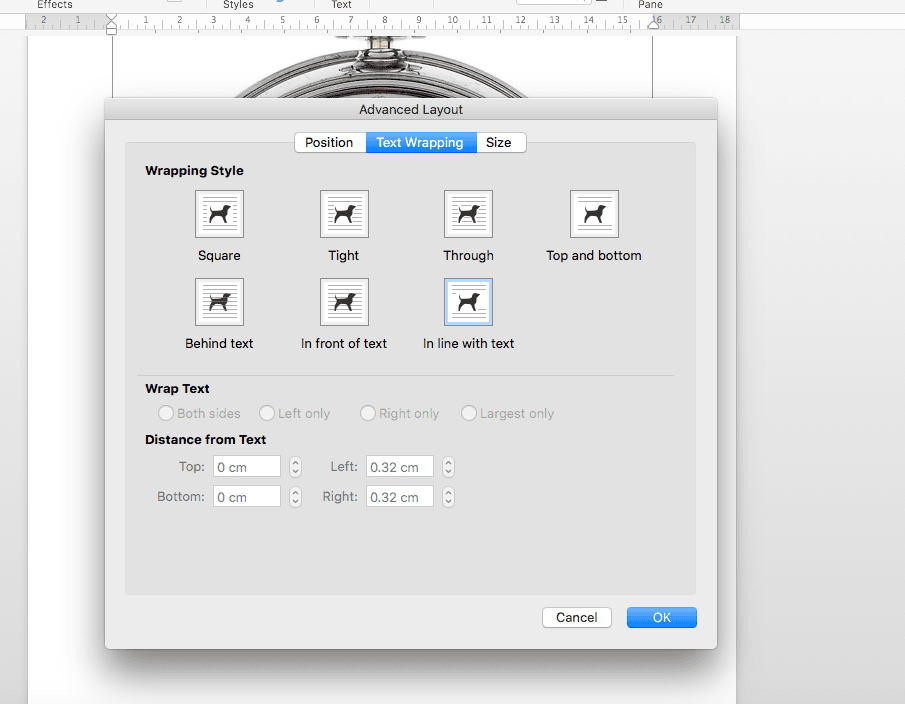
Two types of image positioning are supported:
- Floating
- Inline
By default, images are exported as Inline elements.
Usage
Pass options into the [POSITION_OPTIONS] mentioned in the Intro above.
Floating
To change the position the image to be on top of the text, simply add the floating property to the last argument. By default, the offsets are relative to the top left corner of the page. Offset units are in emus:
const image = new ImageRun({
    type: "png",
    data: buffer,
    transformation: {
        width: 903,
        height: 1149,
    },
    floating: {
        horizontalPosition: {
            offset: 1014400, // relative: HorizontalPositionRelativeFrom.PAGE by default
        },
        verticalPosition: {
            offset: 1014400, // relative: VerticalPositionRelativeFrom.PAGE by default
        },
    },
});
const image = new ImageRun({
type: "png",
data: buffer,
transformation: {
width: 903,
height: 1149,
},
floating: {
horizontalPosition: {
relative: HorizontalPositionRelativeFrom.RIGHT_MARGIN,
offset: 1014400,
},
verticalPosition: {
relative: VerticalPositionRelativeFrom.BOTTOM_MARGIN,
offset: 1014400,
},
},
});Options
Full options you can pass into floating are:
| Property | Type | Notes |
|---|---|---|
| horizontalPosition | HorizontalPositionOptions | Required |
| verticalPosition | VerticalPositionOptions | Required |
| allowOverlap | boolean | Optional. Defaults to true |
| lockAnchor | boolean | Optional. Defaults to false |
| behindDocument | boolean | Optional. Defaults to false. Places the image behind the text |
| layoutInCell | boolean | Optional. Defaults to true |
| margins | IMargins | Optional. Space between image and text, see Margins |
| wrap | ITextWrapping | Optional. See Wrap text |
| zIndex | number | Optional. Relative z-order. If not set, the image height in EMUs is used as the z-order |
HorizontalPositionOptions are:
| Property | Type | Notes | Possible Values |
|---|---|---|---|
| relative | HorizontalPositionRelativeFrom | Required | CHARACTER, COLUMN, INSIDE_MARGIN, LEFT_MARGIN, MARGIN, OUTSIDE_MARGIN, PAGE, RIGHT_MARGIN |
| align | HorizontalPositionAlign | You can either have align or offset, not both | CENTER, INSIDE, LEFT, OUTSIDE, RIGHT |
| offset | number | You can either have align or offset, not both | 0 to Infinity |
VerticalPositionOptions are:
| Property | Type | Notes | Possible Values |
|---|---|---|---|
| relative | VerticalPositionRelativeFrom | Required | BOTTOM_MARGIN, INSIDE_MARGIN, LINE, MARGIN, OUTSIDE_MARGIN, PAGE, PARAGRAPH, TOP_MARGIN |
| align | VerticalPositionAlign | You can either have align or offset, not both | BOTTOM, CENTER, INSIDE, OUTSIDE, TOP |
| offset | number | You can either have align or offset, not both | 0 to Infinity |
Wrap text
Wrapping only works for floating elements. Text will "wrap" around the floating image.
Add wrap options inside the floating options:
wrap: {
    type: [TextWrappingType],
    side: [TextWrappingSide],
},
For example:
const image = new ImageRun({
    type: "gif",
    data: fs.readFileSync("./demo/images/pizza.gif"),
    transformation: {
        width: 200,
        height: 200,
    },
    floating: {
        horizontalPosition: {
            offset: 2014400,
        },
        verticalPosition: {
            offset: 2014400,
        },
        wrap: {
            type: TextWrappingType.SQUARE,
            side: TextWrappingSide.BOTH_SIDES,
        },
    },
});
Wrap options have the following properties are:
| Property | Type | Notes | Possible Values |
|---|---|---|---|
| type | TextWrappingType | Required | NONE, SQUARE, TIGHT, TOP_AND_BOTTOM |
| side | TextWrappingSide | Optional | BOTH_SIDES, LEFT, RIGHT, LARGEST |
| margins | IMargins | Optional | Distance between the wrapped text and the image, see Margins |
When
wrap.marginsis set, it takes precedence overfloating.marginsfor the wrap distance. If it is omitted,floating.margins(see Margins) is used.
Margins
Margins give some space between the text and the image. Margins only work for floating elements. Additionally, the image must also be in wrap mode (see above).
Be sure to also set
wrapin your options!
To use, add the margins options inside the floating options:
margins: {
    top: number,
    bottom: number,
    left: number,
    right: number
},
For example:
const image = new ImageRun({
    type: "gif",
    data: fs.readFileSync("./demo/images/pizza.gif"),
    transformation: {
        width: 200,
        height: 200,
    },
    floating: {
        horizontalPosition: {
            offset: 2014400,
        },
        verticalPosition: {
            offset: 2014400,
        },
        wrap: {
            type: TextWrappingType.SQUARE,
            side: TextWrappingSide.BOTH_SIDES,
        },
        margins: {
            top: 201440,
            bottom: 201440,
        },
    },
});
Outline
Images can be given a border with the outline option:
const image = new ImageRun({
    type: "png",
    data: fs.readFileSync("./demo/images/dog.png"),
    transformation: {
        width: 200,
        height: 200,
    },
    outline: {
        type: "solidFill",
        solidFillType: "rgb",
        value: "FF0000",
        width: 25400, // 2pt (in EMUs, 12700 EMUs = 1pt)
    },
});
Options
| Property | Type | Notes | Possible Values |
|---|---|---|---|
| type | string | Required. The fill type of the outline | noFill, solidFill |
| width | number | Optional. Line width in EMUs (12700 = 1pt) | 0 to Infinity |
| cap | string | Optional. Line cap style | ROUND, SQUARE, FLAT |
| compoundLine | string | Optional. Compound line style | SINGLE, DOUBLE, THICK_THIN, THIN_THICK, TRI |
| align | string | Optional. Pen alignment | CENTER, INSET |
When type is solidFill, two additional properties are required:
| Property | Type | Notes | Possible Values |
|---|---|---|---|
| solidFillType | string | How the fill color is specified | rgb, scheme |
| value | string | The color | For rgb: a hex color, e.g. FF0000. For scheme: a scheme color, e.g. accent1, accent2, ... accent6, bg1, bg2, tx1, tx2, dk1, lt1 |
Using a theme (scheme) color instead of an RGB value:
outline: {
    type: "solidFill",
    solidFillType: "scheme",
    value: "accent1",
},
Clickable images
Placing an ImageRun inside an ExternalHyperlink makes the image clickable — clicking it in the document opens the link:
const doc = new Document({
    sections: [
        {
            children: [
                new Paragraph({
                    children: [
                        new ExternalHyperlink({
                            link: "https://www.example.com",
                            children: [
                                new ImageRun({
                                    type: "png",
                                    data: fs.readFileSync("./demo/images/dog.png"),
                                    transformation: {
                                        width: 200,
                                        height: 200,
                                    },
                                }),
                            ],
                        }),
                    ],
                }),
            ],
        },
    ],
});
Alternative Text
Specifies common non-visual DrawingML properties. A name, title and description for a picture can be specified with the optional altText option:
const image = new ImageRun({
    type: "gif",
    data: fs.readFileSync("./demo/images/pizza.gif"),
    transformation: {
        width: 200,
        height: 200,
    },
    altText: {
        title: "This is an ultimate title",
        description: "This is an ultimate image",
        name: "My Ultimate Image",
    },
});
Options
| Property | Type | Notes | Possible Values |
|---|---|---|---|
| name | string | Required when altText is given | Specimen A |
| title | string | Optional | My awesome title of my image |
| description | string | Optional | My awesome description of my image |
If altText is omitted entirely, name, title and description default to empty strings.
Examples
Add image to the document
Importing Images from file system path
Source: https://github.com/dolanmiu/docx/blob/master/demo/5-images.ts
Add images to header and footer
Example showing how to add image to headers and footers
Source: https://github.com/dolanmiu/docx/blob/master/demo/9-images-in-header-and-footer.ts
Floating images
Example showing how to float images on top of text and optimally give a margin
Source: https://github.com/dolanmiu/docx/blob/master/demo/38-text-wrapping.ts