Tabs and Tab Stops
Tab Stops
Tab stops are useful, if you are unclear of what they are, here is a link explaining. It enables side by side text which is nicely laid out without the need for tables, or constantly pressing space bar.
Note: The unit of measurement for a tab stop is in DXA
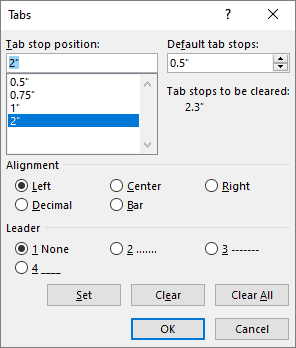
Simply declare the tab stops on the paragraph, as shown below. Use the tab character \t or add the new Tab() child to indicate the tab position within the text property of a TextRun. Adding multiple tabStops will mean you can add additional \t characters until the desired tabStop is selected. Example is shown below.
Example
const paragraph = new Paragraph({
    children: [
        new TextRun({ text: "Hey everyone", bold: true }),
        new TextRun("\t11th November 1999"),
        new TextRun({
            children: [new Tab(), "11th November 1999"],
        }),
    ],
    tabStops: [
        {
            type: TabStopType.RIGHT,
            position: TabStopPosition.MAX,
        },
    ],
});
The example above will create a left aligned text, and a right aligned text on the same line. The laymans approach to this problem would be to either use text boxes or tables. Not ideal!
const paragraph = new Paragraph({
    children: [new TextRun("\t\tSecond tab stop here I come!")],
    tabStops: [
        {
            type: TabStopType.RIGHT,
            position: TabStopPosition.MAX,
        },
        {
            type: TabStopType.LEFT,
            position: 1000,
        },
    ],
});
The above shows the use of two tab stops, and how to select/use it.
Options
Each tab stop definition takes the following options:
| Option | Type | Notes | Possible Values |
|---|---|---|---|
| type | TabStopType | Required | LEFT, RIGHT, CENTER, BAR, CLEAR, DECIMAL, START, END, NUM |
| position | number or TabStopPosition.MAX | Required | Position in DXA, or TabStopPosition.MAX for the right edge |
| leader | LeaderType | Optional | DOT, HYPHEN, MIDDLE_DOT, NONE, UNDERSCORE |
Notes on the less common types: START and END are the writing-direction-aware equivalents of LEFT and RIGHT, DECIMAL aligns numbers on their decimal point, BAR draws a vertical bar at the tab position, NUM is a legacy list-alignment tab, and CLEAR removes an inherited tab stop at that position.
Leaders
The leader option fills the empty space leading up to the tab stop with a repeated character. For example, a dotted leader as commonly seen in tables of contents:
const paragraph = new Paragraph({
    children: [new TextRun("Chapter One"), new TextRun("\t42")],
    tabStops: [
        {
            type: TabStopType.RIGHT,
            position: TabStopPosition.MAX,
            leader: LeaderType.DOT,
        },
    ],
});
You can add multiple tab stops of the same type too.
const paragraph = new Paragraph({
    children: [new TextRun("Multiple \ttab \tstops!")],
    tabStops: [
        {
            type: TabStopType.RIGHT,
            position: TabStopPosition.MAX,
        },
        {
            type: TabStopType.RIGHT,
            position: 1000,
        },
    ],
});

const paragraph = new Paragraph({
    children: [
        new TextRun({
            children: ["Multiple ", new Tab(), "tab ", new Tab(), "stops!"],
        }),
    ],
    tabStops: [
        {
            type: TabStopType.RIGHT,
            position: TabStopPosition.MAX,
        },
        {
            type: TabStopType.RIGHT,
            position: 1000,
        },
    ],
});
Left Tab Stop
const paragraph = new Paragraph({
    tabStops: [
        {
            type: TabStopType.LEFT,
            position: 2268,
        },
    ],
});
2268 is the distance from the left side.
Center Tab Stop
const paragraph = new Paragraph({
    tabStops: [
        {
            type: TabStopType.CENTER,
            position: 2268,
        },
    ],
});
2268 is the distance from the center.
Right Tab Stop
const paragraph = new Paragraph({
    tabStops: [
        {
            type: TabStopType.RIGHT,
            position: 2268,
        },
    ],
});
2268 is the distance from the left side.
Max Right Tab Stop
const paragraph = new Paragraph({
    tabStops: [
        {
            type: TabStopType.RIGHT,
            position: TabStopPosition.MAX,
        },
    ],
});
This will create a tab stop on the very edge of the right hand side. Handy for right aligning and left aligning text on the same line.
Positional Tabs
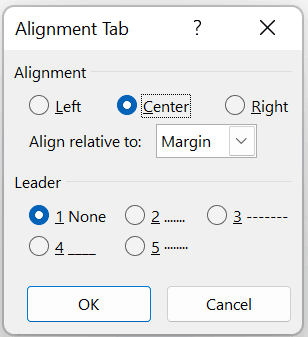
Positional tab allow you to create a tab stop that is relative to the margin, or the page. This is useful if you want to create a table of contents, or a table of figures.
They are easier to use than the normal tab stops, as you can use the PositionalTab class to create a tab stop, and then add the text to the TextRun children. Useful for most cases.
Example
new Paragraph({
    children: [
        new TextRun("Full name"),
        new TextRun({
            children: [
                new PositionalTab({
                    alignment: PositionalTabAlignment.RIGHT,
                    relativeTo: PositionalTabRelativeTo.MARGIN,
                    leader: PositionalTabLeader.DOT,
                }),
                "John Doe",
            ],
            bold: true,
        }),
    ],
}),
Options
| Option | Type | Description | Possible Values |
|---|---|---|---|
| alignment | PositionalTabAlignment | The alignment of the tab stop | LEFT, RIGHT, CENTER |
| relativeTo | PositionalTabRelativeTo | The relative position of the tab stop | MARGIN, INDENT |
| leader | PositionalTabLeader | The leader of the tab stop | NONE, DOT, HYPHEN, UNDERSCORE, MIDDLE_DOT |